
Currently, PAT Tuhituhi Te Pihinga | Writing Foundation assessments need to be created manually. We will be adding PAT Tuhituhi Te Pihinga to our SMS upload feature later in 2026.
To create assessments
- Click on Dashboard then select PAT Tuhituhi Te Pihinga | Writing Foundation.
- Click on the blue + Create Assessment button in the top right-hand side of the screen.
- 3. Under Type select the desired PAT Tuhituhi Te Pihinga writing task (see the PAT Tuhituhi Te Pihinga - Writing foundation Tasks and the image below for information on the different tasks).
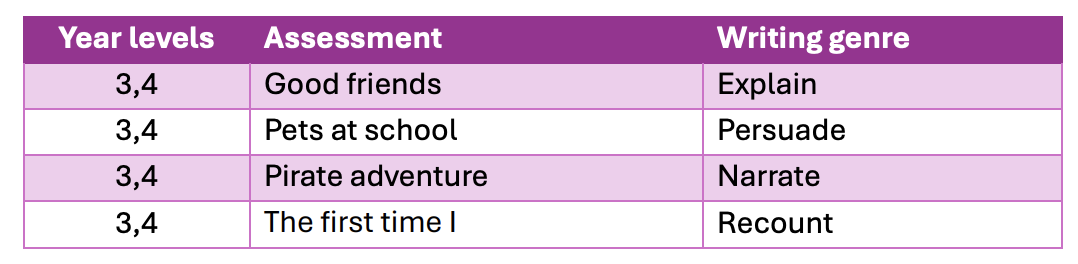
- Year levels Assessment Writing genre
4. Add a Name for your assessment and select your (term) Period. Then click Create.
5. You will be returned to the PAT Tuhituhi Te Pihinga screen, and your assessment/s
will be displayed in a table.
6. Click on the Manage Learners icon under the Actions section of the Assessments
Table.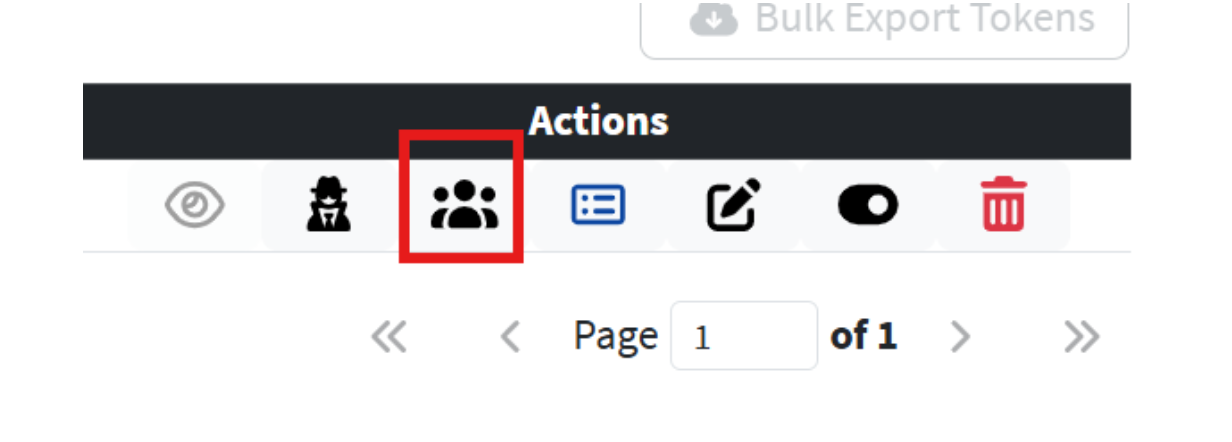
7. Click on the blue Add Learners button and you will see a list of all learners you
have access to within NZCER Assist (School Admins see ALL learners, Teachers
only see learners they are linked to via Classes).
a. If you cannot view all learners, you may need to upload a csv file of student
data from your Student Management System (SMS) to capture up-to-date
student information.
b. Steps on how to upload an SMS csv file can be found here How do I upload an SMS file into NZCER Assist? : Professional Services.
8. You can use the filter options on the Add Learners screen to easily select all learners within a specific class and/or year level. You can then select all displayed learners and add them in bulk to the assessment.
TIP: At the bottom of the screen, you can change the page size view to show 15 (default view) or more learners onscreen.
9. Once learners are selected, click Add Learners.
10. Once you have added learners to your assessment, click Back and you will return to the assessment screen. Your selected learners will be displayed.